 FusionTerm
Users and roles
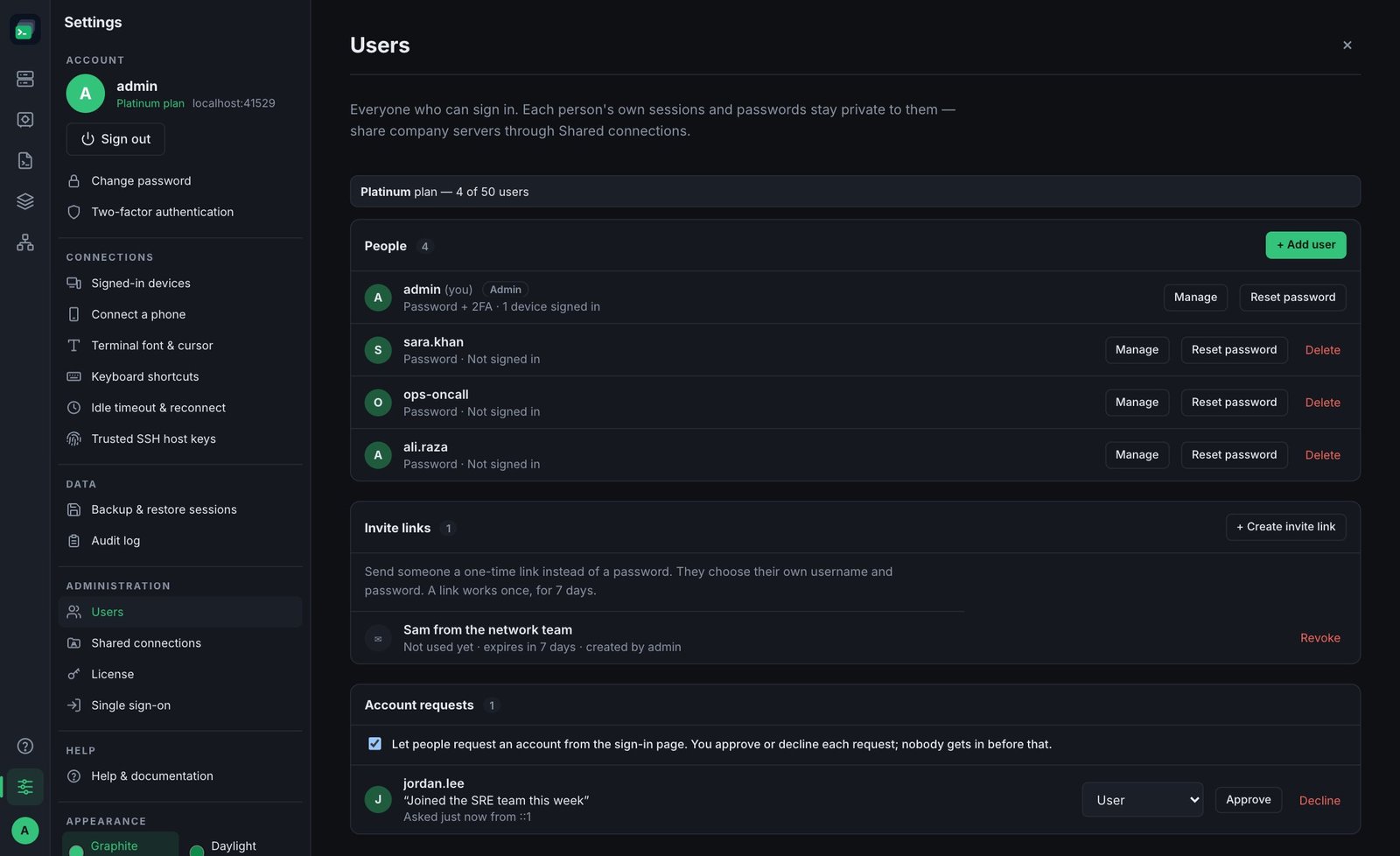
Admins manage who can sign in under Settings → Users. The top line shows your plan and how many of its users you're using.
Roles
- User — their own saved servers, vault, snippets and workspaces, plus any shared connections they're given.
- Administrator — everything a user can do, plus users, shared connections, the license, single sign-on and the phone address.
Each person's own servers and passwords are private to them — admins can see the list of someone's servers (to help or to move them), but never their passwords, keys or Personal vault.
Three ways to give someone an account
Send an invite link (simplest)
- Under Invite links, click + Create invite link.
- Optionally note who it's for (only admins see it). Tick Administrator only if they should manage FusionTerm.
- Create link, then Copy it and send it over a channel you trust. The link is shown only once.
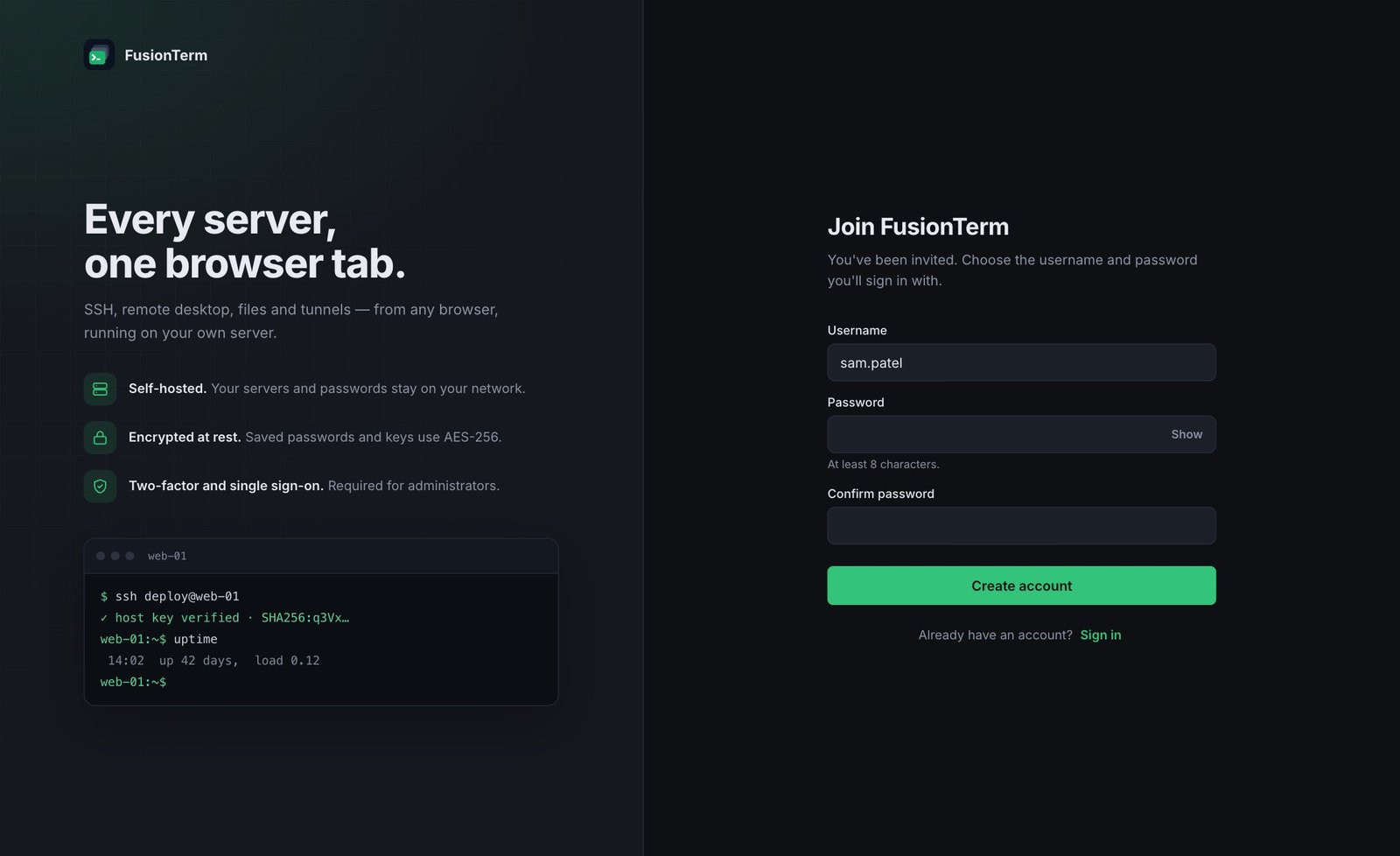
They open the link, choose their own username and password, and are signed in. A link works once, for 7 days; open links are listed until they're used, and Revoke stops one at once.
Add the user yourself
- Click + Add user.
- Enter a Username and a Temporary password (at least 8 characters). Keep Ask them to choose their own password ticked. Tick Administrator only if they should manage FusionTerm.
- Create user, then give them the address and temporary password. When they first sign in, FusionTerm asks them to choose their own.
Let people request an account
Under Account requests, tick Let people request an account from the sign-in page. The sign-in page then shows Request an account: people choose a username and password and can say why they need access. Nobody gets in until you Approve the request (as a user or an administrator); Decline removes it. Admins see a reminder after signing in when requests are waiting. It's off by default, and hidden while single sign-on is required.
With single sign-on and automatic accounts turned on, you don't need to add people at all — they appear on first sign-in.
Every new account — whichever way it's made — counts towards your plan's users.
Two-factor for administrators
Administrators who sign in with a password must use two-factor sign-in. A new administrator sets it up right after their first sign-in, before FusionTerm opens; administrators can't turn it off. Everyone else is reminded to turn it on, and can choose not to. Administrators who sign in with single sign-on use their identity provider's two-step check instead.
Manage a user
Click Manage next to someone to see:
- the devices they're signed in on, with Sign out everywhere and Disable account (Offboarding);
- their saved servers — you can move one into a shared folder or delete it;
- their recent activity.
Reset password sets a new temporary password, signs them out everywhere, and asks them to choose their own at their next sign-in. Reset two-factor is for someone who lost their phone and their recovery codes: it turns two-factor off for their account, so they sign in with just their password and set it up again (an administrator is asked to straight away) — only do this once you're sure it's really them asking. The bin icon deletes the account (servers they created in shared folders stay).
Tip: keep at least two administrator accounts, so one admin can always help the other. If the only admin is locked out, see Troubleshooting.
The number of users depends on your plan — see Plans and licenses.