 FusionTerm
Single sign-on (Google, Microsoft, Okta, Keycloak)
Let people sign in with the account they already have — Sign in with Google, Sign in with Microsoft and so on. FusionTerm uses OpenID Connect, so it works with Google Workspace, Microsoft Entra ID (Azure AD / Microsoft 365), Okta, Keycloak, Auth0 and any OpenID Connect provider. Single sign-on is included in the Gold plan and above.
How it works
- Someone clicks Sign in with Google on the FusionTerm sign-in page.
- Their browser goes to Google, where they sign in (with Google's own two-step check).
- Google sends them back with a signed confirmation of who they are; FusionTerm checks it and signs them in.
FusionTerm never sees their Google password. Each company registers its own FusionTerm with its provider, because every FusionTerm runs at its own address.
You need: FusionTerm on an HTTPS address (see Run it behind HTTPS) and admin access to your identity provider.
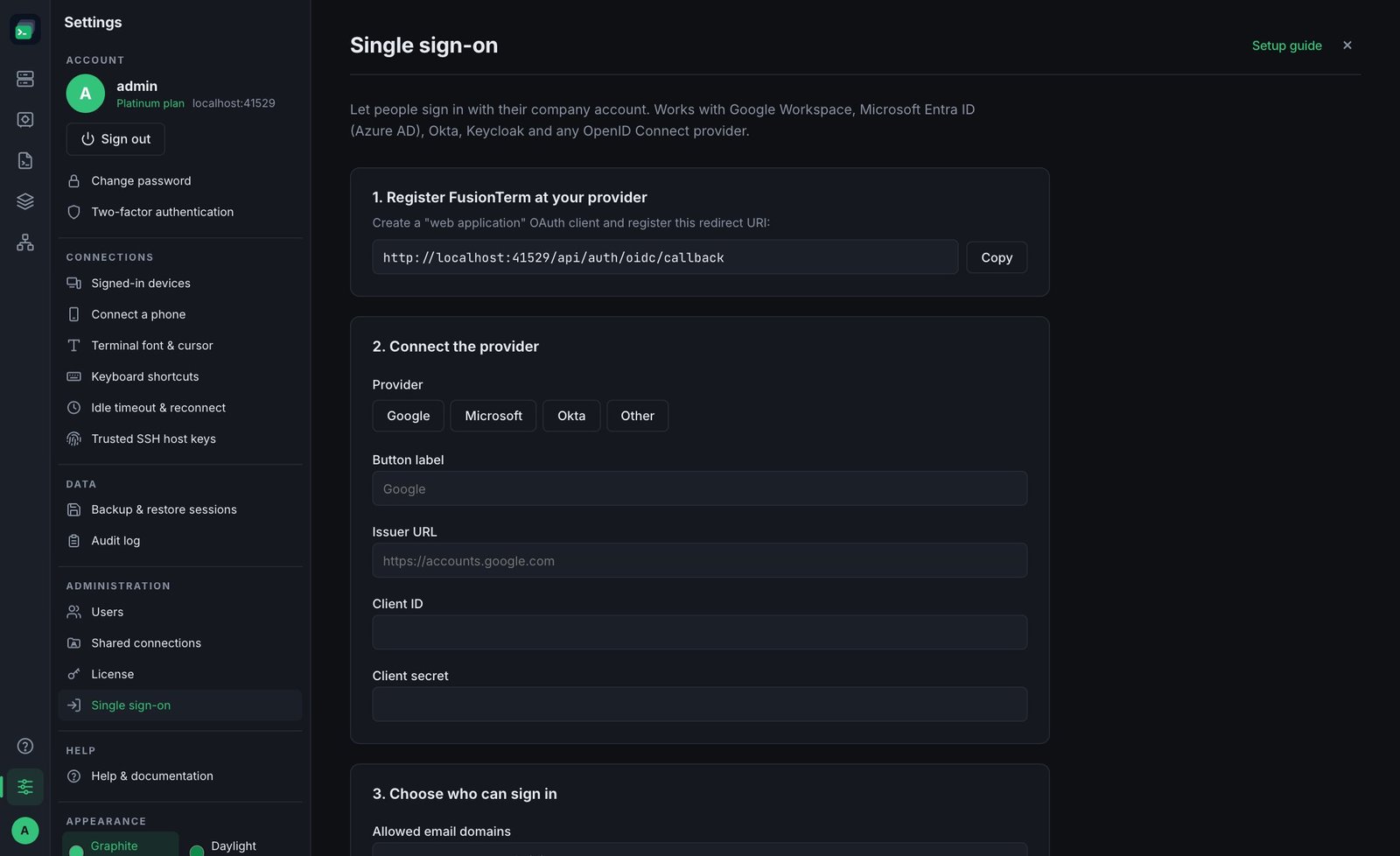
1. Copy the redirect URI
Settings → Single sign-on. Copy the redirect URI shown at the top — for example https://fusionterm.example.com/api/auth/oidc/callback. If it shows the wrong address because of your reverse proxy, fill in Public URL first.
2. Register FusionTerm with your provider
Google Workspace
- Open console.cloud.google.com and choose or create a project.
- APIs & Services → OAuth consent screen → User type Internal (only your company's accounts) → app name "FusionTerm" → save.
- APIs & Services → Credentials → Create credentials → OAuth client ID → Application type Web application.
- Under Authorized redirect URIs, paste the redirect URI from step 1 → Create.
- Copy the Client ID and Client secret.
In FusionTerm, click Google — it fills in the issuer https://accounts.google.com.
Microsoft Entra ID (Azure AD / Microsoft 365)
- Open entra.microsoft.com → Applications → App registrations → New registration.
- Name "FusionTerm", account types this organizational directory only, redirect URI platform Web = the redirect URI from step 1.
- Copy the Application (client) ID and Directory (tenant) ID.
- Certificates & secrets → New client secret → copy its Value.
- Token configuration → Add optional claim → ID → email.
In FusionTerm, click Microsoft and put your Directory (tenant) ID in the issuer: https://login.microsoftonline.com/<tenant-id>/v2.0.
Okta
- Okta admin → Applications → Create App Integration → OIDC → Web Application.
- Sign-in redirect URI = the redirect URI from step 1; assign the people or groups who may use FusionTerm.
- Copy the Client ID and Client secret.
In FusionTerm, click Okta; the issuer is https://<your-org>.okta.com.
Keycloak and others
The issuer is the realm or tenant address that serves /.well-known/openid-configuration — for example https://sso.example.com/realms/main. Create a confidential client with the standard (authorization code) flow and the redirect URI from step 1.
3. Fill in FusionTerm and save
| Field | What to enter |
|---|---|
| Button label | What the sign-in button says — "Google", "Microsoft"… |
| Issuer URL | From your provider, above |
| Client ID / Client secret | From your provider (the secret is stored encrypted) |
| Allowed email domains | e.g. example.com — only provider-verified emails in these domains can sign in |
| Create accounts automatically | On: the first sign-in creates the FusionTerm user (uses a seat of your plan). Off: an admin creates the user first, with their email as the username |
| Role for new accounts | Usually User |
| Require SSO | Turns off password sign-in for non-admins. Admins can always still use their password, so you're never locked out if the provider is down |
Save & enable checks that FusionTerm can reach your provider. Then test in a private browser window — click Sign in with … — before you turn on Require SSO.
How accounts are matched
- The first time
jane@example.comsigns in, an existing FusionTerm user namedjane@example.comis linked; otherwise a new one is created (if automatic accounts are on). - After that, Jane is recognised by the provider's permanent ID, not her email — renaming her email doesn't create a duplicate.
- Single sign-on accounts have no FusionTerm password and can't set one, so removing someone at your provider removes their way in. To cut access immediately, also disable them in FusionTerm — see Offboarding.
If sign-in fails
| Message on the sign-in page | Fix |
|---|---|
| email domain isn't allowed | Add the domain under Allowed email domains |
| email address isn't verified | Verify the email at the provider (Microsoft: add the email optional claim) |
| no FusionTerm account for you | Turn on automatic accounts, or create the user (username = email) |
| plan has no free user seats | Upgrade the license or remove unused users |
| sign-in attempt expired | Try again; it must finish within 10 minutes in the same browser |
| Single sign-on failed | Check the redirect URI matches exactly (https, host, port, path) and the client secret hasn't expired. Details are in the audit log |