 FusionTerm
Phone and tablet
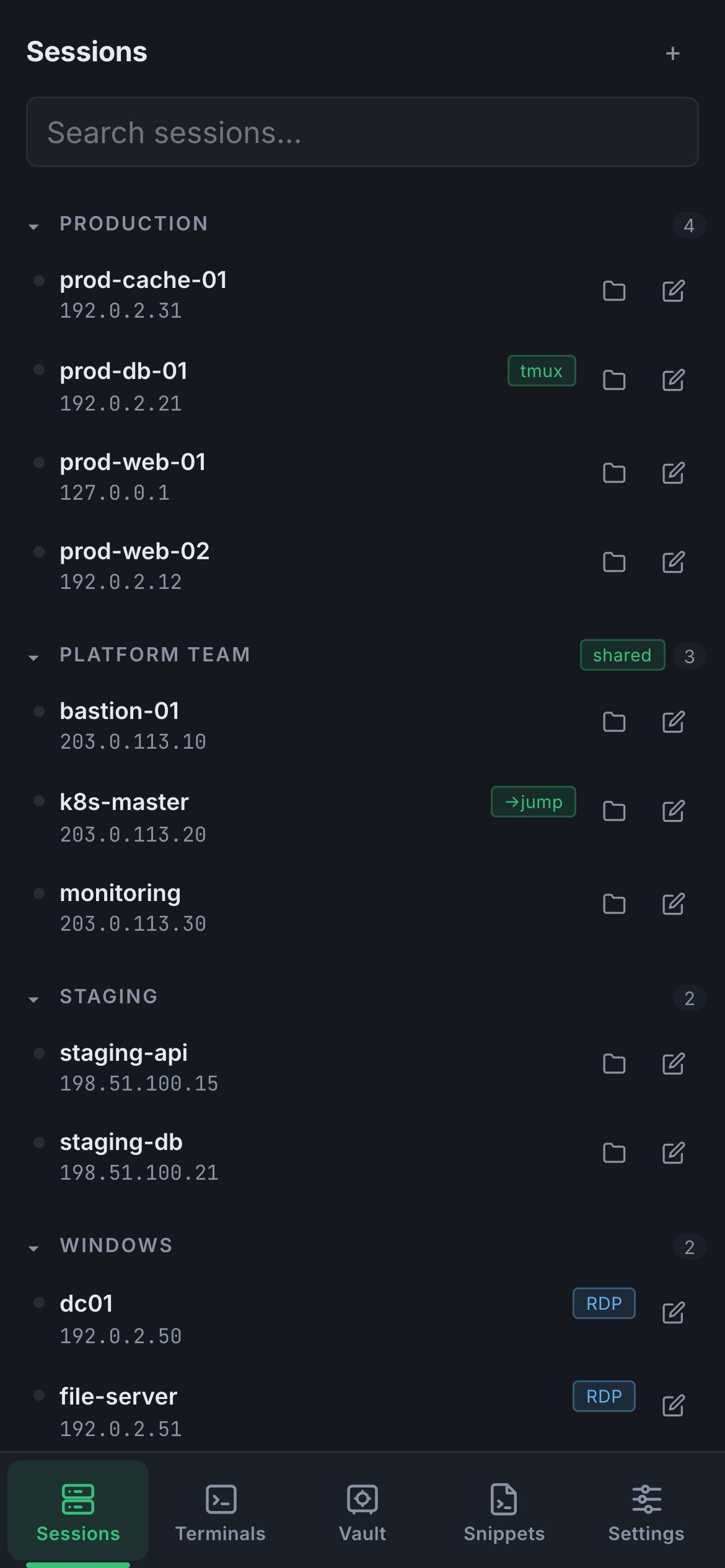
FusionTerm works on phones and tablets: your servers, terminals, the vault and snippets, with SSH and RDP.
Open it on your phone
- On your computer, go to Settings → Connect a phone.
- Scan the QR code with the phone's camera. FusionTerm opens in the phone's browser — sign in as usual.
- Add it to the home screen so it opens like an app: on iPhone/iPad, Share → Add to Home Screen; on Android, browser menu → Install app.
The QR code contains only the address — no password or key. Everyone still signs in with their own account (and two-factor or single sign-on).
Important: the phone must be able to reach the FusionTerm server — on the same Wi-Fi, over VPN, or through your public HTTPS address. A localhost address only works on the FusionTerm machine itself. Admins set the address phones should use under Public address on the same page. Installing to the home screen needs HTTPS.
The FusionTerm Android app
On the Gold plan and above, there's also an Android app (Android 8 or newer):
- Open FusionTerm in the phone's browser (above), go to Settings → Connect a phone and tap Download for Android.
- Open the downloaded file. Android asks to allow installs from your browser or Files app ("Install unknown apps") — allow it, then Install.
- Open the app, scan the QR code on Connect a phone (or type the address) and sign in.
Google Play is coming later. The app connects only to your own FusionTerm server.
On a small screen
- The bar at the bottom switches between Sessions, Terminals, Vault, Snippets and Settings.
- Above the keyboard there are extra keys — Esc, Tab, Ctrl, Alt and arrows — that phone keyboards lack. Ctrl and Alt stay pressed for the next key.
- Sign out at the top of Settings.
Every phone you sign in from appears under Settings → Signed-in devices, so a lost phone can be signed out from any computer — see Signed-in devices and offboarding.