 FusionTerm
First sign-in
The first time you open FusionTerm, it asks you to create an account. That first account is the administrator: it can add users, set up shared connections, single sign-on and the license.
Create the admin account
- Open
http://<your-server>:5577. - Choose a username and a password of at least 8 characters, and type the password again to confirm it.
- Turn on two-factor sign-in. Administrators must use it, so FusionTerm asks right away: scan the QR code with an authenticator app on your phone and type the 6-digit code it shows (more about two-factor).
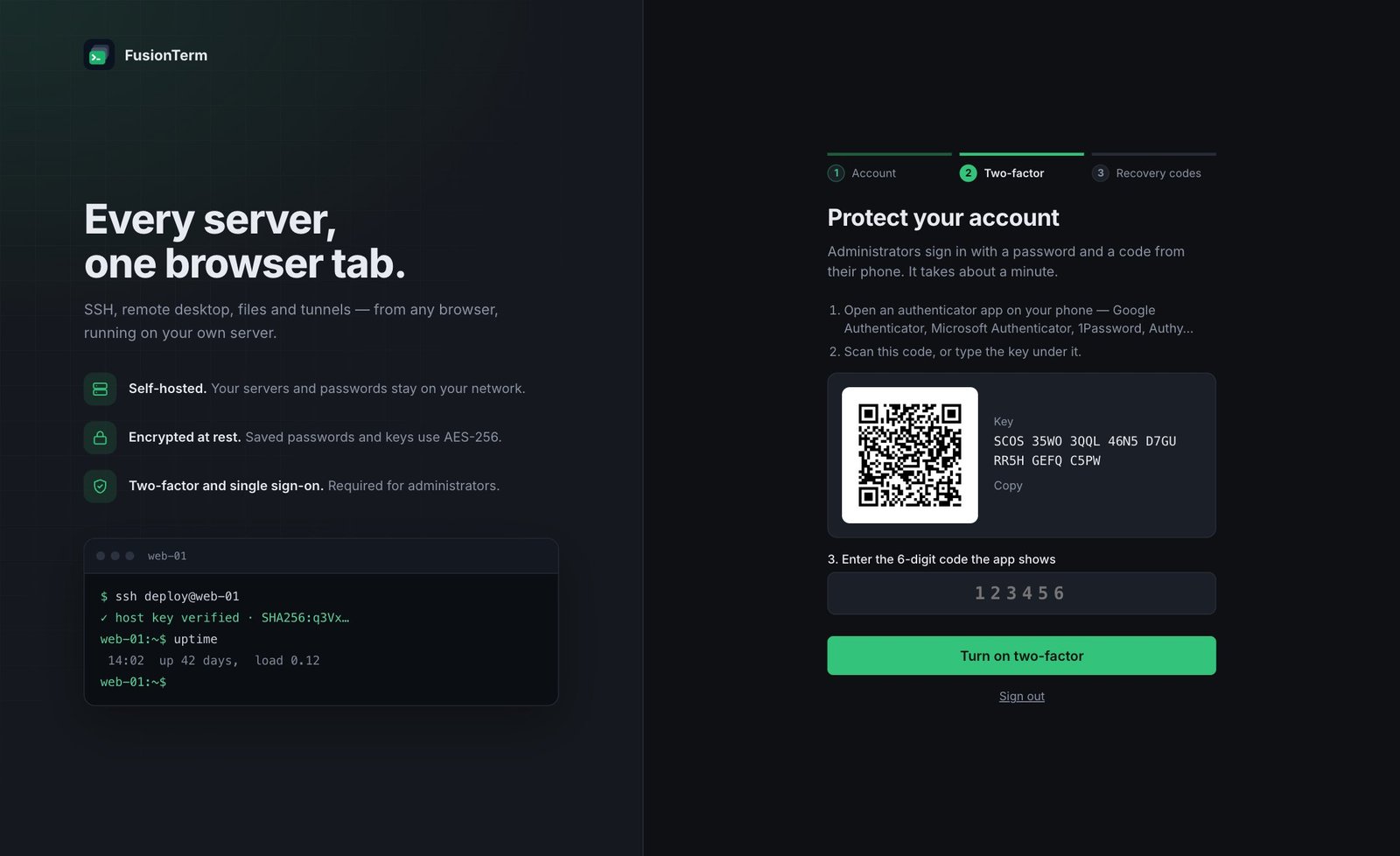
Turning on two-factor during setup · full screenshot - Save your recovery codes (copy or download them), tick the box, and continue.
- You're in, on the Free plan (one user, up to 20 saved connections).
Find your way around
The bar on the left switches between the main areas. Point at an icon to see what it is.
| Icon | What it opens |
|---|---|
| Sessions | Your saved servers, in folders |
| Vault | Passwords, SSH keys and tokens |
| Snippets | Saved commands to run on a server |
| Workspaces | Sets of servers you open together |
| Net Tools | DNS, ping, ports, TLS and email checks |
| Settings | Your account, connections, data, administration and appearance |
The Settings list is where everything else lives: change password, two-factor authentication, signed-in devices, connect a phone, terminal font, keyboard shortcuts, idle timeout, trusted host keys, backups, the audit log, and — for admins — users, shared connections, license and single sign-on. At the bottom it shows your FusionTerm version.