 FusionTerm
Shared connections
Give your team access to company servers without sharing the password or key. People connect with one click; the credentials stay encrypted on the FusionTerm server.
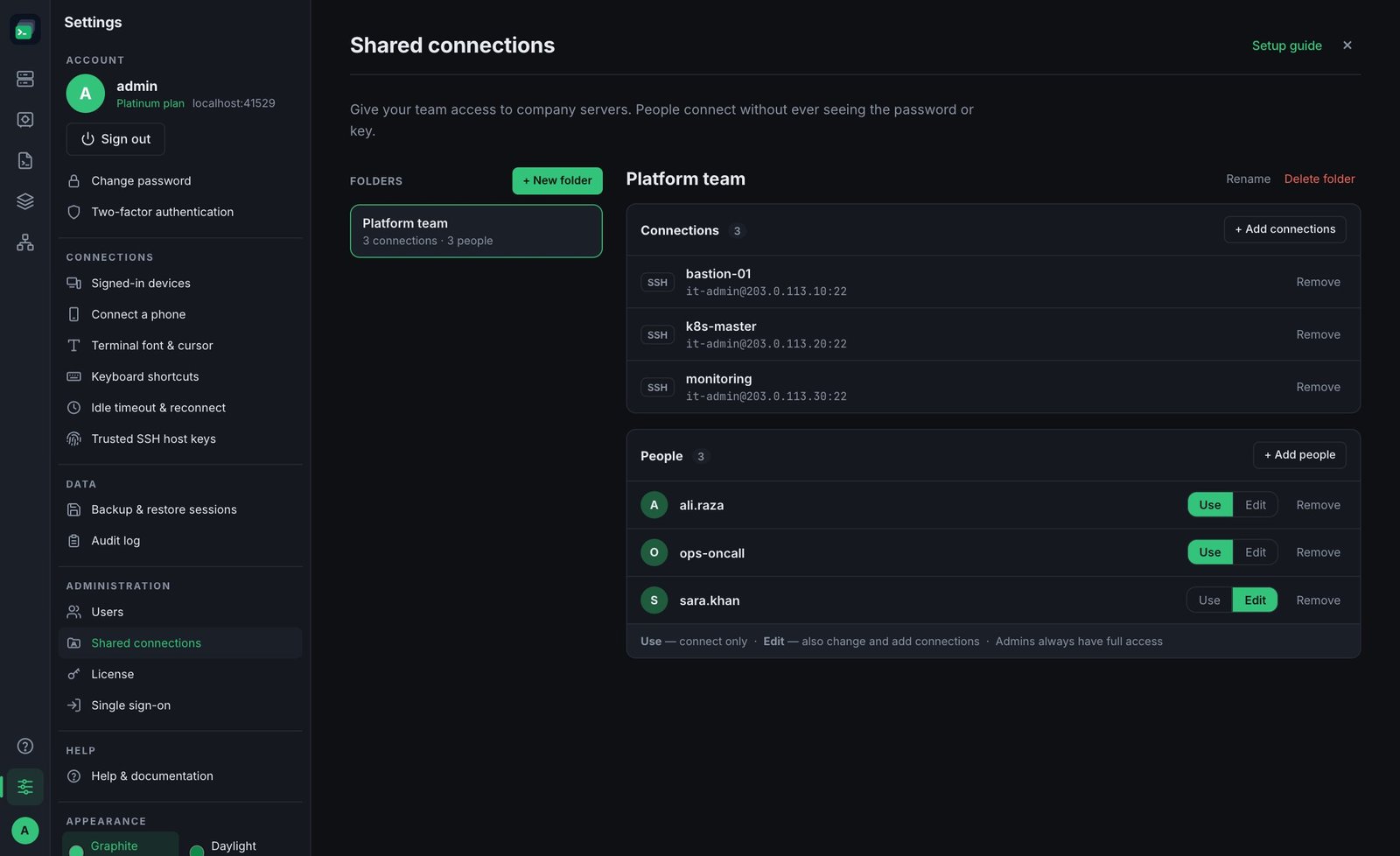
Set it up (admins)
- Settings → Shared connections → + New folder, for example "Production" or "Customer A".
- + Add connections — tick any number of saved servers and add them in one go. They move into the shared folder.
- + Add people — tick the people who should have access.
- For each person, choose:
- Use — connect only.
- Edit — also change the folder's servers and add new ones.
Admins always have full access to every shared folder. To let one person connect to a server of yours without moving it into a company folder, use Share with people instead.
You can also create a server straight into a shared folder: in the new-server form, choose the folder under Save to.
What members see
The folder appears in their Sessions list with a shared badge. With Use access they connect, open files and use tunnels as normal, but can't see or change the server's password, key or settings — those servers show a small use tag.
Changing access
- No end date / until … next to a person sets when their access ends (in 1 day, a week, 30 or 90 days). At that time FusionTerm removes them from the folder and closes their open tabs on its servers; the audit log records it.
- Remove next to a person takes their access away immediately — any tab they have open on one of the folder's servers is disconnected.
- Remove next to a connection moves it back to the admin's own sessions.
- Delete folder removes the folder.
Good to know
- Shared servers that sign in with a vault entry must use an entry from a shared vault folder, not a Personal one.
- A shared server can only use another shared server as its jump host.
- Shared folders are part of the Gold plan and above (the Free plan has one user).