 FusionTerm
HTTP diagnostics
Test a website or API the way curl -I, curl -v, curl -L and curl -w would, without building the command by hand. FusionTerm shows the status, headers, redirect chain, TLS certificate and timing, explains what the result means and suggests what to check next. Open HTTP from the left bar (on a phone: Settings → Tools → HTTP diagnostics).
The quick way
- Type the address, for example
shop.example.com—https://is added for you. - Press Test URL (or one of the four buttons under it: Quick check, Follow redirects, SSL/TLS check, Response timing).
- Read the coloured box: green means the site answered fine, blue is a redirect, red is an error.
- Follow Start here — the first thing to check, with a command to copy — then the numbered steps in the Overview.
Everything else (where the test runs from, headers, login, the cURL command, comparing layers) is under More tools. FusionTerm remembers your choice.
Error guide (under the URL box) explains every status code and connection error — what it means, where the problem usually is, and how to check and fix it — without running a test. Search it for a code (502) or a word (refused, certificate).
Where a test runs
Choose this under More tools → Run from. Every result shows where it ran and when.
- This FusionTerm server: the request leaves from the machine FusionTerm runs on, not from your computer. FusionTerm uses its own HTTP client for it, so curl doesn't need to be installed there.
- An SSH session: open an SSH tab to a server first, then pick it. The test runs with that server's own
curland network, which is how you test a backend from the reverse proxy in front of it. That server needscurlinstalled. Credentials are passed to curl on its standard input, so they never show up in that server's process list.
Note: a result shows what one place sees. A site that works from the FusionTerm server can still fail for users on another network, so test from more than one place when in doubt.
All the tools
The first four are always shown; the rest appear with More tools:
| Action | What it does |
|---|---|
| Quick check | Status, headers and timing of the URL as typed. Redirects are not followed, so you see the original answer |
| Headers only | A HEAD request. If the server refuses HEAD, FusionTerm repeats the test with GET and says so |
| Verbose | Connection, TLS handshake, request and response headers, in the Raw output tab |
| Follow redirects | Every hop of the redirect chain, with loops, HTTPS→HTTP downgrades, internal addresses and login redirects flagged |
| SSL/TLS check | Whether the certificate is trusted and valid for the name, its expiry, chain, protocol and cipher |
| Response body | Downloads the body and shows JSON, HTML or text with highlighting. HTML is shown as text and never rendered |
| API test | Custom method, headers, authentication and a JSON body |
| Response timing | DNS, TCP connect, TLS, time to first byte and download |
| HTTP/2 check | Whether the server agrees to HTTP/2 during the TLS handshake (https:// only) |
| Custom cURL | Paste a curl command. Its options fill in the form, and nothing you paste is executed. Options that write files, read @files or use shell pipes are refused |
| DNS & IP | Every IPv4/IPv6 address of the name, and a TCP connect to each one |
| Compare layers | The same request against the public URL, the proxy by IP and the backend, from here or from SSH sessions, to see which layer breaks |
Request options has headers, body, Basic or Bearer authentication, timeouts, IPv4/IPv6, the HTTP version, the size limit and the expected status. Under Routing you can:
- Connect to IP: send the request to a specific server while keeping the host name, like
curl --resolve. - Host header: override the host name the server sees.
- TLS SNI name: override the name used in the TLS handshake.
Equivalent cURL command shows the same request as a curl command you can copy, with passwords, tokens and cookies redacted.
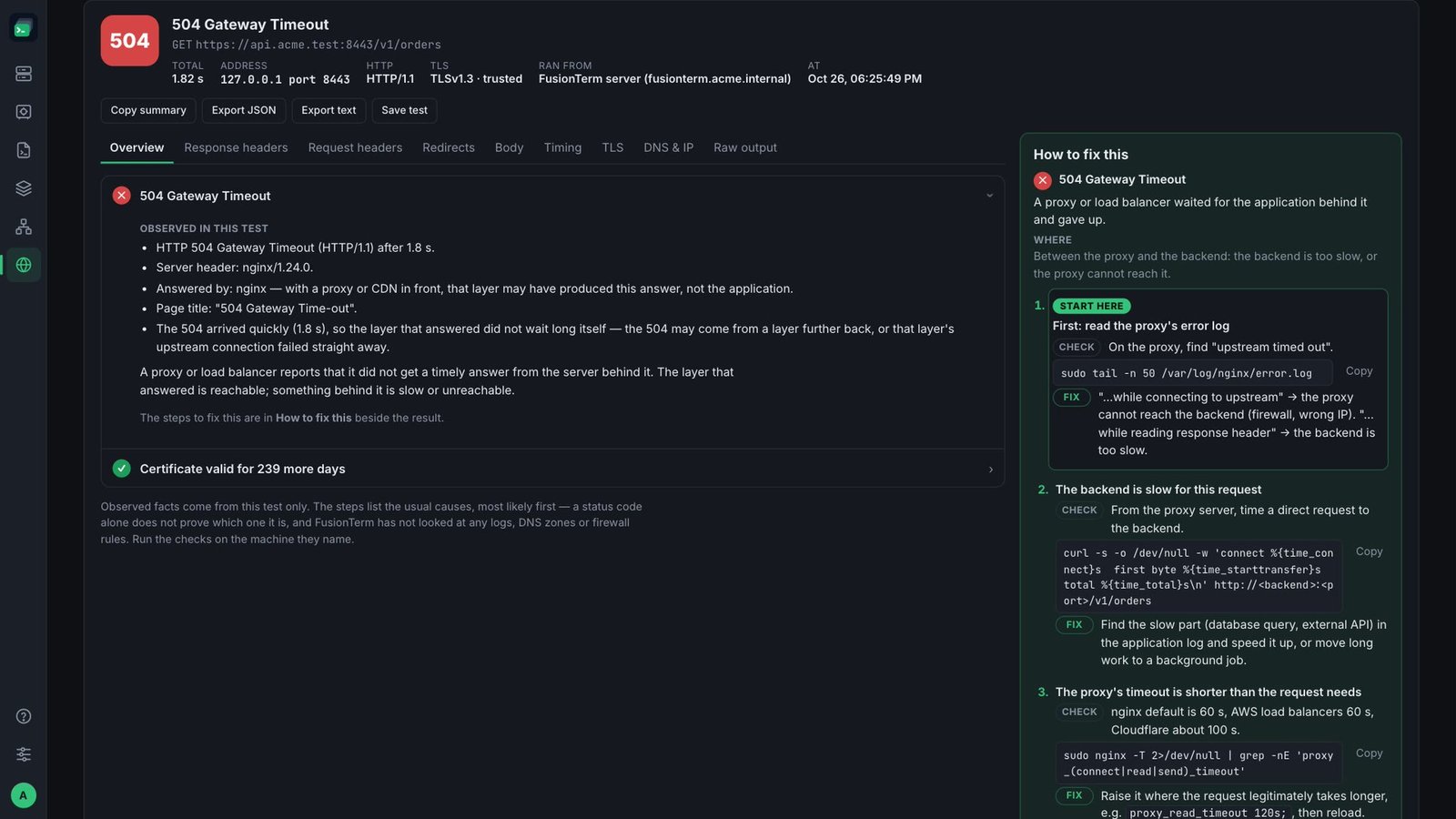
Reading the result
Every result explains itself:
- What it means and where the problem usually is (for a 502: between the reverse proxy and the application).
- Observed in this test: facts from this request, such as the status, headers, address and times.
- How to troubleshoot: numbered steps, most likely cause first. Each step says how to check it — usually with a command to copy, already filled in with the host and port you tested — and how to fix it. Run each command on the machine the step names (the proxy, the backend, the server itself).
A status code alone doesn't prove which cause it is, and FusionTerm doesn't look at your server logs, DNS zones or firewall rules — the steps tell you where to look.
Example: https://app.example.com returns 504. Use Compare layers with three layers: the public URL, the reverse proxy (Connect to IP = the proxy's address) and the backend URL run from an SSH session on the proxy. If only the public URL and proxy fail, look at the proxy's upstream address and timeouts. A backend that answers one direct request isn't proven healthy, though: the path, Host header, TLS and authentication can differ.
Certificates
Certificate checks are always on. If the certificate isn't trusted, FusionTerm closes the connection before sending the request or any credentials, then shows why (expired, self-signed, missing intermediate, wrong name).
For a server you control, Skip certificate checks lets the test go through anyway. The result still says the certificate would have failed. The option switches itself off after one test. Never treat such a result as proof that a site can be trusted.
To trust an internal certificate authority for tests from the FusionTerm server, start FusionTerm with NODE_EXTRA_CA_CERTS=/path/to/ca.pem.
Saved tests, history and exports
- Save test keeps the URL and options, organised in groups (project, environment, server). Passwords, tokens, sensitive headers and secret URL parameters are not saved unless you tick Remember credentials. They are then encrypted on the server like session passwords.
- History keeps your last 200 tests without credentials. Response bodies are left out unless you tick Keep the response body in history. Tick two runs and press Compare runs to see what changed.
- Copy summary, Export JSON and Export text produce reports with secrets redacted.
Saved tests and history are per account.
What a test from the FusionTerm server may reach
Tests from the FusionTerm server are limited so they can't be used to reach things they shouldn't. FusionTerm checks the address it actually connects to after resolving the name, and again for every redirect:
- Link-local and cloud metadata addresses (such as
169.254.169.254) are never reached. - The FusionTerm server itself (
127.0.0.1,::1) is off by default. An administrator can allow it for administrators. - Private networks (
10.x,172.16–31.x,192.168.x,fc00::/7) are open to administrators by default. Under Destination policy, administrators can open them for everyone, close them for everyone, or list trusted networks that everyone may test. - Only administrators can send tests through an HTTP proxy.
The same policy applies to Net Tools.
Tests from an SSH session aren't limited by this policy. They use that server's own network, which you can already reach with your shell there. Every test is written to the audit log.
Tests are limited to 60 every 5 minutes and 3 at a time per person. Responses are capped at 2 MB, and each test has a time limit of 60 seconds or less.